
Installation
Install the GptSkin Skill for the Codex workspace — one sentence auto-installs it, or follow the manual steps.
Quick Start: One Sentence Is Enough
Skip the long manual below. Send this sentence to your Codex:
Install this skill and give Codex a new look: https://github.com/WendongAI/gptskin-skillCodex downloads, installs, and applies a theme for you automatically — no manual steps.
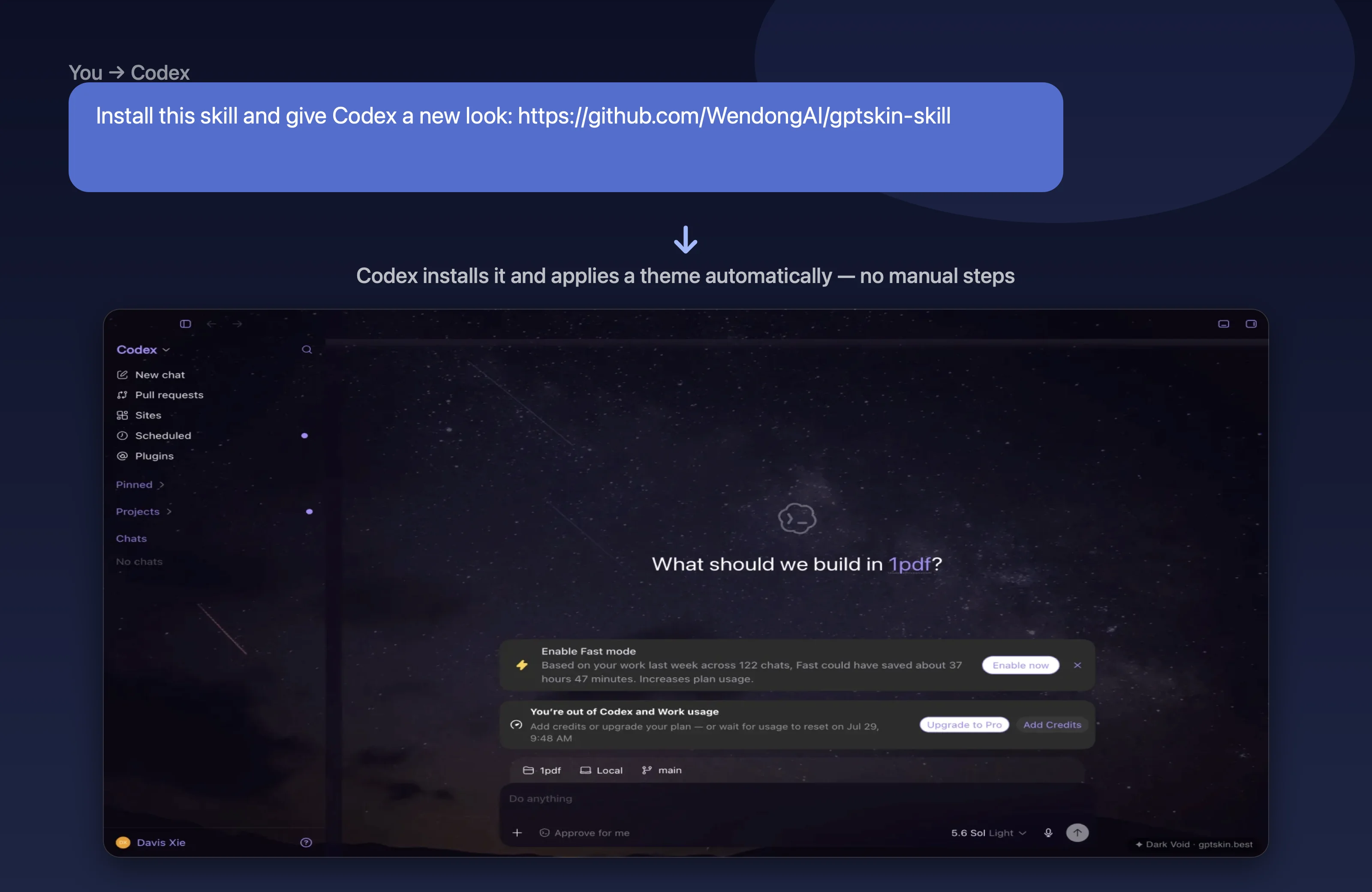
All you need: macOS or Windows, the Codex desktop app, and Node.js 20+ (verify with node -v).
Stuck, or want the details? See the manual steps below.
Manual Installation (Fallback)
System Requirements
- macOS or Windows
- Codex desktop app
- Node.js 20+ (verify with
node -v)
Paid custom theme builds additionally require a free account at gptskin.best. The 6 preset themes work without any account.
1. Install the Skill
The GptSkin Skill is open source (GitHub). Install it into your Codex skills directory:
git clone https://github.com/WendongAI/gptskin-skill.git ~/.codex/skills/gptskin-theme
cd ~/.codex/skills/gptskin-theme
npm install
Restart Codex so it picks up the new Skill. You can verify the scripts are in place:
node ~/.codex/skills/gptskin-theme/scripts/apply-theme.mjs --help2. Try a Free Preset
No account needed. In Codex, just say:
Apply the dark-void preset themeOr run the script directly:
node ~/.codex/skills/gptskin-theme/scripts/apply-theme.mjs --preset dark-voidAvailable presets: dark-void, sunset-glow, aurora-borealis, snow-peak, city-lights, minimal-light.
3. Custom Themes (Secure Browser Login)
GptSkin has one paid custom-theme type: an image-backed theme. The website manages your account, Credits, payment, and theme artifacts; the open-source Skill performs the paid build and applies the result locally in Codex.
Run the device login command:
node ~/.codex/skills/gptskin-theme/scripts/apply-theme.mjs --loginGptSkin opens a short-lived authorization page. Sign in or register, review the named device, and select Authorize Codex. No API key copy is required. New verified accounts receive 20 bonus Credits, valid for 30 days.
Now attach an image (max 4 MiB, JPEG/PNG/WebP), or ask Codex imagegen to create a local image first. The Skill passes either image into the same paid command:
node ~/.codex/skills/gptskin-theme/scripts/apply-theme.mjs \
  --image /absolute/path/theme.png "Theme Name" \
  --confirm-charge=20
Each new custom image theme costs exactly 20 Credits. Reapplying a locally saved theme is free. The Skill asks before spending Credits and before restarting Codex with local CDP enabled. If the balance is too low, it opens GptSkin pricing; after you explicitly complete Creem checkout and Credits arrive, the same request continues automatically.
Restore the Default Theme
At any time, tell Codex:
Restore the default Codex themeThis removes all injected styles and decorative layers and restarts Codex normally.
Troubleshooting
- Theme doesn't apply after a desktop app update — app updates can change internal interface structures. Restore the default theme first, then pull the latest Skill (
git -C ~/.codex/skills/gptskin-theme pull) and try again. node: command not found— install Node.js 20+ and make sure it's on your PATH.- Login expired or already used — run
--loginagain. Authorization codes expire after 10 minutes and can be exchanged only once. - Image rejected — uploads must be JPEG, PNG, or WebP and at most 4 MiB.
- Nothing changed visually — make sure Codex was restarted after installing the Skill, and that the theme application reported success.
- Codex desktop app not found — first confirm you're running the official Codex desktop app: not the Codex CLI, not a VS Code extension, and not a third-party portable repack. The official desktop app installs to
%LOCALAPPDATA%\Programs\Codex\Codex.exeby default. If yours lives elsewhere, point the Skill at it with theCODEX_APP_PATHenvironment variable (PowerShell example:$env:CODEX_APP_PATH='D:\Apps\Codex\Codex.exe'). Two ways to locate the path: right-click the Codex shortcut → Open file location, or — while the desktop app is running — runGet-Process | Where-Object { $_.Path -match 'Codex|ChatGPT' } | Select-Object -ExpandProperty Path -Uniquein PowerShell. - Windows error
0xc0000142/ "No process is on the other end of the pipe" — this usually means your Codex is a third-party "offline installer / portable" repack. These builds cannot be restarted by the Skill, and they are a security risk because they handle your API keys and conversations. Install the official desktop app from OpenAI's official channels instead. Since Skill 0.3.0, such paths are detected and blocked with an explanation up front — the Skill will not force-kill the process. - Codex CLI vs. the desktop app —
%LOCALAPPDATA%\OpenAI\Codex\bin\<hash>\codex.exeis the command-line CLI, not the desktop app; do not set it asCODEX_APP_PATH. The desktop app is an Electron application installed atPrograms\Codex\Codex.exe(i.e.%LOCALAPPDATA%\Programs\Codex\Codex.exe).
Need more help? Email support@gptskin.best — we respond within 3 business days.
Verification and Change History
Last verified: July 28, 2026.
- Verified macOS and Windows support, Node.js 20+, device authorization, the 20-Credit custom build price, and the 4 MiB JPEG/PNG/WebP limit against GptSkin Skill v0.6.0 and production behavior.
- Recheck this guide after a Skill release or a change to authentication, pricing, upload limits, or platform support.
- Review the public Skill releases, or contact GptSkin to report an outdated step.